

Sho and others are doing some interesting development work using Supabase. Unlike the waterfall development approach we've used so far, I hear talk about gathering functional requirements from the UI side—but I can't fall behind!
So this time, I've created a simple note app and put together a guide on how to integrate Supabase and Prisma to save data to a database. I'll be using Gemini CLI too!
Environment: Next.js
We're not using Supabase's Auth, Realtime, or RLS—instead we're adopting Prisma to access the database functionality from the API. Since database tables can be handled like JavaScript/TypeScript objects, it should enable frontend engineers to write code in a familiar way.
Prisma
Prisma ORM is an Object-Relational Mapping (ORM) library available for TypeScript and JavaScript.
Simply put, it's a tool that lets you perform database operations through methods defined as objects in your programming language, without writing SQL.
What's more, Prisma automatically generates types from your database schema, so if you try to manipulate a column that doesn't exist in the database or data with a mismatched type, you'll catch it with a compile error!
Supabase
Supabase is a full-stack backend service gaining attention as an open-source Firebase alternative.
- High scalability and reliability built on PostgreSQL database
- Real-time database functionality with automatic data change notifications
- Support for diverse authentication methods (email/password, social login, phone authentication, and more)
- File storage functionality for efficient large-file management
- Fast development through auto-generated RESTful API and GraphQL API
- Abundant developer tools and SDKs with easy configuration and setup
Since we want to prioritize the integration process with Supabase, we'll have you create the UI part with Gemini CLI. It's an incredibly useful tool! I'm glad the company uses Google Workspace!

I'd like to create a memo feature with Supabase and Prisma. First, please create page.tsx.
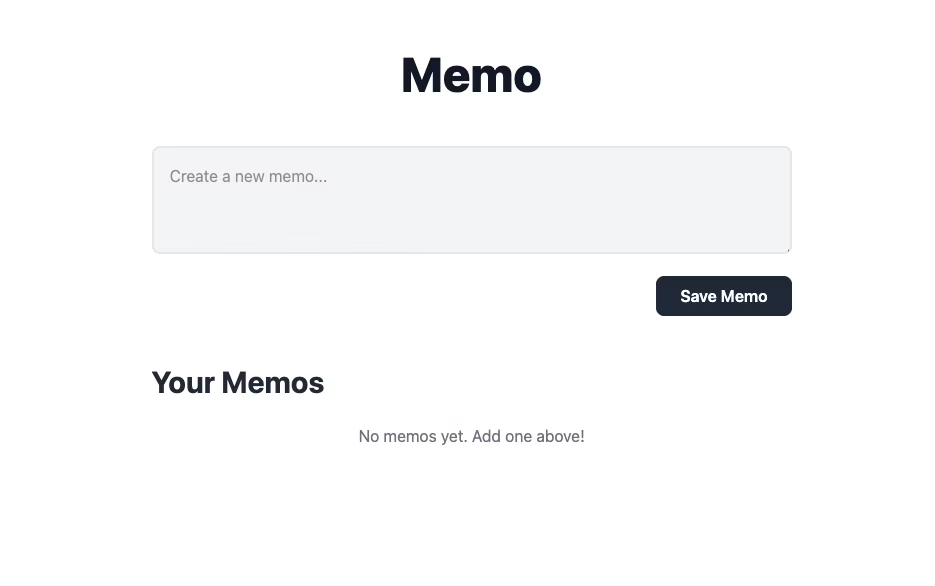

Got it. So I want you to set it up so that when you enter content in the textarea and press the Save Memo button, it gets added as a list in Your Memos.
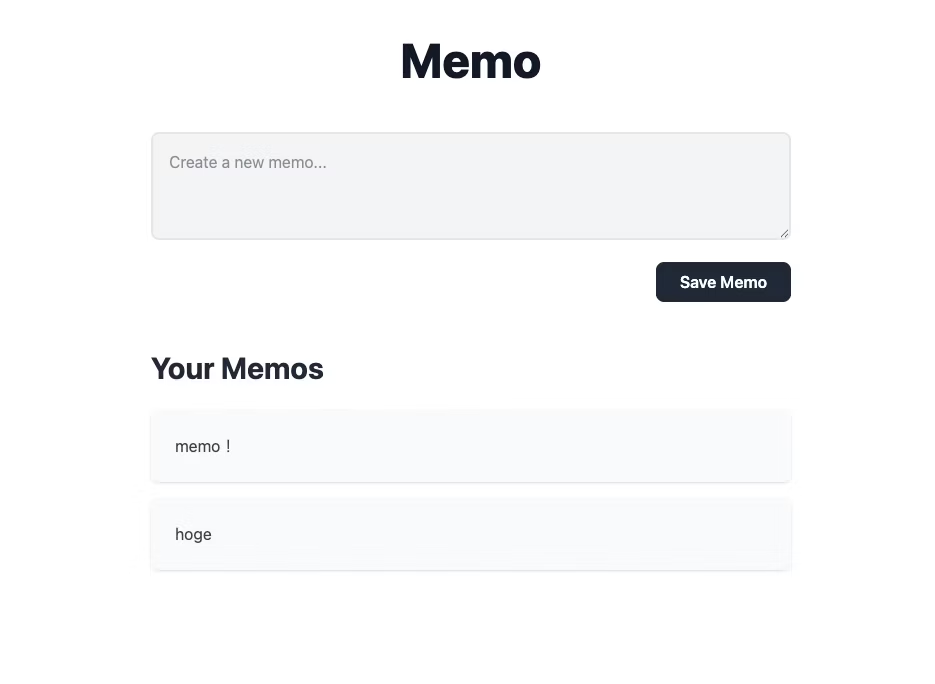
The appearance looks good! Content entered now gets added to the list below. However, since it's only using JavaScript events, the list will disappear when you reload the page.
To persist the entered content, we'll use a database!
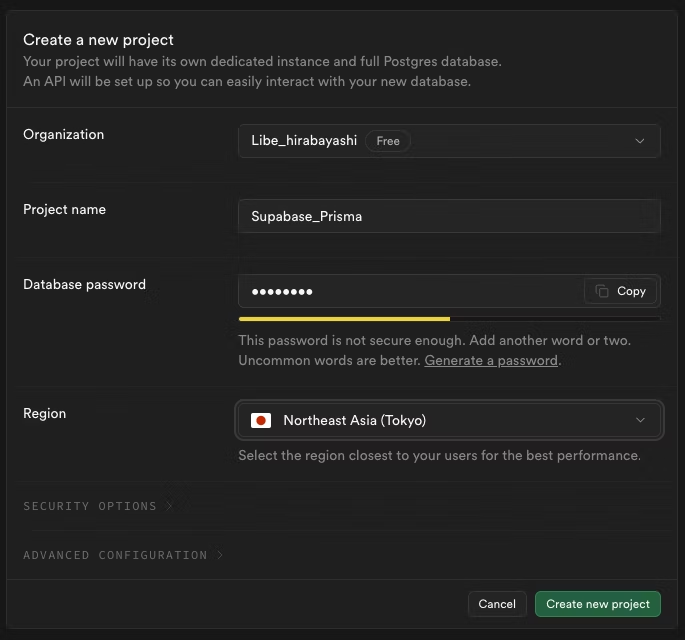
First, create a new project on the Supabase side.
Create it from the "New Project" button. Keep the Database password handy—you'll need it when connecting with Prisma.
Next, integrate Prisma.
npm install prisma --save-dev

npx prisma init
Running these commands installs Prisma and creates a prisma folder.
Replace the DATABASE_URL in the .env file with Supabase's connection URL. Substitute [YOUR-PASSWORD] with the Database password you set in Supabase.
DATABASE_URL="postgresql://postgres.odoaingwnxkhkeujwhtp:[YOUR-PASSWORD]@aws-1-ap-northeast-1.pooler.supabase.com:5432/postgres"
Then write your schema (database structure definition) in /prisma/schema.prisma.
generator client {
  provider = "prisma-client-js"
}

datasource db {
  provider = "postgresql"
  url      = env("DATABASE_URL")
}

model Memo {
  id        Int      @id @default(autoincrement())
  content   String
  createdAt DateTime @default(now())
}
The model name can be customized as needed.
Once you've written the schema, run a migration.
npx prisma migrate dev --name init
A migration.sql file is generated and data tables are created on the Supabase side.
Creating an API to connect to Supabase
We create a connection API to save the entered values to Supabase.
Install Prisma Client in the project.
npm install @prisma/client
Connecting to Supabase
/libs/prisma.ts
import { PrismaClient } from "@prisma/client";

const Prisma = new PrismaClient(); //インスタンス化

export const main = async () => {
  try {
    await Prisma.$connect();
  } catch (error) {
    return Error("DB接続に失敗しました");
  }
};
API
/api/memos/route.ts
import { NextResponse } from "next/server";
import { prisma } from '@/lib/prisma';

export const GET = async (req: Request, res: NextResponse) => {
  try {
    await main();
    const memos = await Prisma.memo.findMany();
    return NextResponse.json(memos);
  } catch (error) {
    return NextResponse.json("エラーが発生しました");
  } finally {
    await Prisma.$disconnect();
  }
};

export const POST = async (req: Request, res: NextResponse) => {
  const { content } = await req.json();
  try {
    await main();
    const memos = await Prisma.memo.**create**({
      data: {
        content: content,
      },
    });
    return NextResponse.json(memos);
  } catch (error) {
    return NextResponse.json("エラーが発生しました");
  } finally {
    await Prisma.$disconnect();
  }
};
The GET function is an API that retrieves all records from the database, using the findMany() method to fetch all records matching the conditions. The "memo" in Prisma.memo.findMany() is the schema name.
The POST function is an API that adds data to the database, creating records with create().
There are also methods for deletion and updates, allowing you to operate with JavaScript syntax without writing SQL statements.
Everything is now ready here.
Just import the API you wrote earlier into page.tsx and integrate it.
'use client';

import React, { useState, useEffect } from 'react';

interface Memo {
  id: number;
  content: string;
  createdAt: string;
}

export default function MemoApp() {
  const [memos, setMemos] = useState<Memo[]>([]);
  const [newMemo, setNewMemo] = useState('');

  const fetchMemos = async () => {
    const response = await fetch('/api/memos');
    const data = await response.json();
    setMemos(data);
  };

  useEffect(() => {
    fetchMemos();
  }, []);

  const handleSaveMemo = async (e: React.FormEvent) => {
    e.preventDefault();
    if (newMemo.trim() !== '') {
      await fetch('/api/memos', {
        method: 'POST',
        headers: {
          'Content-Type': 'application/json',
        },
        body: JSON.stringify({ content: newMemo }),
      });
      setNewMemo('');
      fetchMemos();
    }
  };

  return (
    <div className="bg-white min-h-screen">
      <div className="max-w-2xl mx-auto px-4 py-16">
        <header className="text-center mb-12">
          <h1 className="text-5xl font-extrabold text-gray-900">Memo</h1>
        </header>

        <main>
          <div className="mb-12">
            <form onSubmit={handleSaveMemo}>
              <textarea
                className="w-full p-4 text-gray-800 bg-gray-100 rounded-lg border-2 border-gray-200 focus:outline-none focus:ring-2 focus:ring-gray-400 focus:border-transparent transition"
                placeholder="Create a new memo..."
                rows={3}
                value={newMemo}
                onChange={(e) => setNewMemo(e.target.value)}
              ></textarea>
              <div className="flex justify-end mt-4">
                <button
                  type="submit"
                  className="px-6 py-2 bg-gray-800 text-white font-semibold rounded-lg hover:bg-gray-900 transition"
                >
                  Save Memo
                </button>
              </div>
            </form>
          </div>

          <section>
            <h2 className="text-3xl font-bold text-gray-800 mb-6">Your Memos</h2>
            <div className="space-y-4">
              {memos.length > 0 ? (
                memos.map((memo) => (
                  <div key={memo.id} className="bg-gray-50 p-6 rounded-lg shadow-sm">
                    <p className="text-gray-700">{memo.content}</p>
                  </div>
                ))
              ) : (
                <div className="text-center text-gray-500">
                  <p>No memos yet. Add one above!</p>
                </div>
              )}
            </div>
          </section>
        </main>
      </div>
    </div>
  );
}
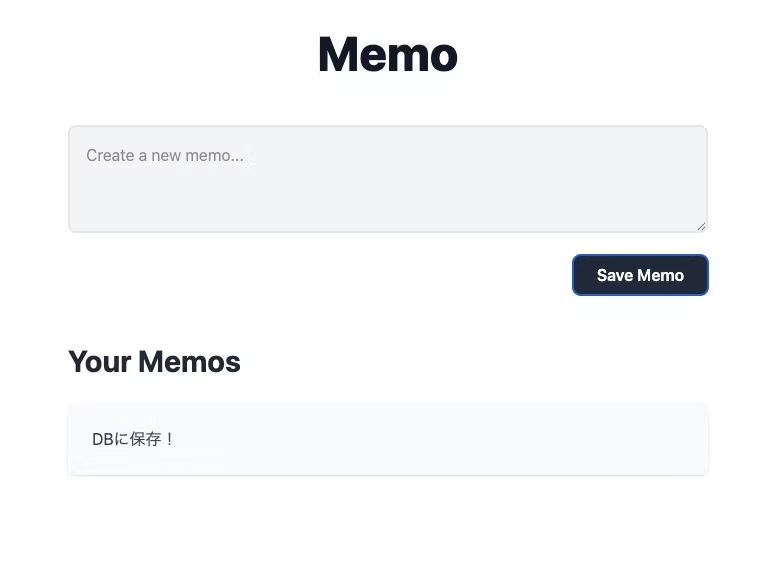
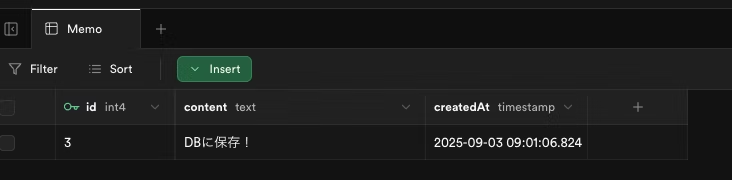
It's saved on the Supabase side!
This time I relied on Gemini to create things roughly, but if I use the database to save values, the range of features and apps I can create will expand even more!
I had a preconceived notion that backend seemed difficult, but with GUI tools I can manage the database in a clear and understandable way, which lowered the barrier to database integration!
Yes!



I focus on frontend development with markup, JavaScript, React, and Next.js. I'm always happy when a site I've worked on goes live successfully! My hobbies are playing guitar, and I love cats and roasted sweet potatoes 🐱🍠
Hiraicchi
Frontend Engineer / Joined 2022