

When you're collaborating on design parts in Figma, unexpected issues can pop up. Have you ever experienced trouble with component-based icon colors not switching properly?
This article breaks down the "icon instance color not reflecting" problem that many Figma users face, explaining both the cause and the solution in clear terms.

My senior colleague turned the button I made into a component! And the icon part can switch too!! Amazing!! But since we're short on icons, I'm going to keep registering more icons as components to make it more user-friendly!
I kept churning out icons steadily.

Wait, the icon component isn't switching properly? I'm making it the same way as my senior, so why won't the color change?

That's the problem—it's how you're creating your icons!

Senior! How do I get the color to change?

Well, I'll teach you the secret to switching icons in Figma. Take good notes and commit it to memory!

Yes! I'll do my best to remember!
Why are colors inherited? Understanding Figma's override mechanism
When creating buttons in Figma, it's common to set up icon components so they can be swapped using instance properties. However, when you switch icons, you may encounter issues where the colors you set don't apply or change unexpectedly.
Have you ever encountered trouble in Figma where the colors you set don't apply or don't change when you swap icons? This article explains the cause and solution in an easy-to-understand way.
Make sure to check the settings on both the icon and button side so colors switch properly when you swap icons.
First, check the structure of the button component
First, let's confirm the situation where colors are overridden with a structure like the following.
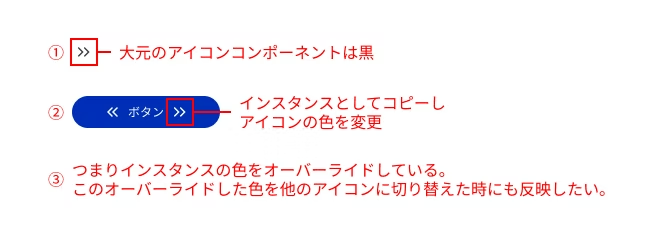
① The main icon component is black
② Copied as an instance inside the button with only the color overridden
③ When you switch to a different icon in this state, the icon color may revert to the default instead of white
tips: Understanding the relationship between master components and overrides
The most important thing to understand is that overridden properties will no longer reflect changes made to the master component.
Overridden properties: When you change colors or text in an instance, that part becomes independent. If you later change the same property in the master component, it won't be applied to that instance. The overridden properties (fill and stroke colors, text, etc.) take priority.
Non-overridden properties: Properties you haven't changed (such as padding or margin) will reflect any changes made to the master component.
Pay special attention when changing the layer structure of a master component. If you rename layers or delete and add new ones, Figma may recognize them as different elements and reset the instance's overrides.
With this in mind, let's investigate why the icon color isn't switching.
Cause 1: Fill and Stroke settings are mixed
Even if icons appear identical at first glance, Fill and Stroke are treated as completely separate properties in Figma. Because of this, when switching from an icon created with Fill to one drawn with Stroke, color overrides may not be applied correctly.
Example:
Icon A

Icon B

- Icon A: An outlined icon composed of fill
- Icon B: An icon with strokes forming the outline
When icons are drawn differently, the color application results change as well, so it is important to standardize the representation method. Icon B has white specified as the fill color, but since this icon component is only built with strokes, the color does not replace. However, white is actually properly reflected in the fill—it just has nowhere to go since there is no fill element.
✅ Solution:
Make it a rule to create all icons with fill. For icons drawn with strokes, always outline them (command+shift+O) to convert them into fill objects. This has the added benefit of being easier to handle during implementation.
In our case, when implementing, we put SVG paths into CSS variables or embed them with Astro Icon, so we standardize everything as fill.
Leaving strokes as-is causes the stroke width to change when icons are scaled, which can break the design. Unless there's a special reason, outlining and standardizing to fill is best!
When built with strokes only, the stroke size remains the same even when the icon is resized. For simple paths like arrows, this is often not an issue, but with complex icons, they often become crushed at 12px or stretched at 80px.

Icons built with strokes will have the stroke width change when resized, so outlining is the best option. If you want to keep the original data before outlining, keep it near the component.
Even when icons built with strokes are combined and converted to fill, you often see issues where only parts don't change size.

Reason 2: Layer names do not match
Figma has a specification where when switching component instances, styles and properties are inherited for elements with matching layer names.
Example:
Icon A

Icon B

- Icon A vector layer name:
Vector - Icon B vector layer name:
Vector2
When layer names differ like this, Figma treats them as "separate," and overridden styles do not apply correctly.
✅ Solution: Standardize layer names used in icons (e.g., all Vector)
For now, make sure all layer names for paths you want to color are the same!
Reason 3: Layer structure (hierarchy) differs
Even if you standardize layer names, switching may not work correctly in some cases. This could be related to differences in layer structure. If the number or structure of layers differs between the instance source and target, properties may not map correctly. However, if layer names are the same, minor hierarchical differences may not be an issue in some cases.
Example:
Icon A

Icon B

Icon C

- Icon A: convert the
Vector (path)to outlines and combine into a single vector (base icon) - Icon B is "Flame
(Flame)> Vector(path)" hierarchy → OK (color is inherited by the path name "Vector") - Icon C has the structure "Vector
(Flame)> Flame(path)" → NG (color change set on the Flame named "Vector" appears)
In this case, where the layer named "Vector" contains groups, you need to be careful about how styles are applied. Also, color changes only occur at the top layer (see icon C)—color changes are not reflected in the second-level Vector.
✅ Solution: Design your path structure so that the actual styles applied match, not just layer names, and you'll be able to avoid issues more easily.
As long as the vector name matches, minor structural differences are usually okay. However, in team development, it's considerate to keep the internal structure as consistent as possible for anyone who joins later.
Reason 4: The number of fills and strokes differs from the original component

If you're using a single color, you can consolidate layers and unify the layer structure and naming without concern. However, when switching to icons that have a different number of fills or strokes compared to the base component, only some colors may change while others remain unchanged, which may not produce the intended result. As a best practice, keep icons to a single color. Alternatively, if you need to use two colors, consider creating a separate icon variable specifically for two-color icons.
✅ Solution:
- Do not mix single-color and multi-color icons.
- If you need multi-color icons, duplicate the icon component in the variable and create one for two-color icons.
- When using multi-color icons, avoid using color overrides as a general rule.
Be careful—overriding a single-color icon only allows you to change one color!
Cause 5: Effects of blend modes or masks
When masks or special blend modes (such as multiply) are applied to an icon, changing the color may not produce any visible change.
✅ Solution:
If masks or blend modes are in use, flatten or merge objects to convert them into simple path objects that match the appearance, then turn them into components.
In this case too, it's safer to outline and simplify to basic paths. If multiply is being used, make sure to convert to paths properly using live trace or similar tools.
Verification summary
Cause | Details | Solution |
|---|---|---|
Layer name mismatch | Properties not retained when switching instances | Standardize layer names across all icons (example: Vector) |
Layer structure mismatch | Styles may not apply if layer hierarchy or structure differs | Align the structure of the final rendered objects |
Number of layers differs from the base component | Number of fills specified in the base component differs | Address using style application, compound paths, and merge |
Blend/Mask | Color has no visual effect | Return to |
Observed color reflection behavior
Below is the color reflection behavior confirmed when switching various icons within buttons (see image).
Test pattern | Result | Notes |
|---|---|---|
Path outlines | ✅ Color reflected | Simple structure keeps it stable. However, re-editing can be difficult. |
When paths are combined using boolean operations | ✅ Color reflected | No issues if the top-level layer name is the same. Switching works properly if the number of direct child layers matches the original instance. |
Vector hierarchy structure differs (Group > Vector) | ✅ Color reflected | OK if layer names match at the relevant location. However, if the structure differs or names are duplicated, display may not work correctly. |
More complex shapes (blends or path merges) | ✅ Color reflected | Grouping paths together keeps it stable |
When changing structure, such as placing the copied vector inside a group or frame | 🔺 Colors may not reflect in some cases | Likely to be recognized as a separate layer, so if you need to add to it, duplicating the component and modifying that copy is more reliable. |
Vector name differs | ❌ Color is not applied | Layer name mismatch is treated as a separate object |
Internal structure is more complex than the source data with significant differences | ❌ Color is not applied | When the number of layers increases or the number of frames becomes large, only some colors are reflected. The differences are significant, and it is likely to be judged as a separate layer |
Replacement after deleting the source | ❌ Color is not applied | Treated separately even with the same name |
When there is a frame with the same name in the parent frame of the icon path | ❌ Color applies to the parent frame | Color changes to the parent frame with the same name are reflected, so styles don't apply to the path |
Operations Tips
Key points from validation:
- It's critical that layer names and structure match
- Managing fill colors with Color Styles or Variables is safer, but it's not always necessary to specify them
- For icon creation, unify fills considering implementation ease (outlines tend to shift size when scaling, so converting to outlines is recommended)
- When adding elements to existing icons, it's easier to avoid color issues by creating new icons instead of editing current variants and replacing them one by one
Key points for smooth progress from design creation to implementation:
- Keep frame sizes consistent (use uniform sizes like 24px, 40px, 80px rather than mixed sizes)
- The icon portion resizes appropriately when scaled, matching the icon size changes (handling data becomes much easier both in implementation and design)
Additional implementation rules for our team:
- Set colors to pure black #000 (Astro Icon won't change colors if the source data isn't black)
Common issues that arise during the operational phase:
- Be careful when editing existing icons: When you add or modify elements in an existing icon during operation, the structure often changes unintentionally, leading to color reflection issues. In such cases, rather than directly editing the existing component, it's safer to create a new icon component following the rules and swap it in.
Summary
Got it? When creating icons, just follow these three basic rules and you're good to go! 1. Use fills for everything (convert strokes to outlines!) 2. Keep layer names consistent for all paths that need color 3. Keep the icon's layer structure as simple as possible And one more thing to watch out for during the operational phase—editing existing icons. Trouble often happens when the structure changes during the editing process and colors stop being applied. So instead of directly modifying an existing icon, follow the rules and create a new component to make your edits there. Then swap the old icon for the new one in the button component, and color issues should be much less likely to occur.

Thank you so much! Now I'm an icon master too! I'll try creating a component using the method you taught me!
When switching icon instances, even if they look the same, differences in internal structure will prevent colors from being applied correctly.
By strictly following the two key points we introduced today—especially "using fills consistently" and "keeping layer names consistent"—you should be able to prevent most issues.
If switching still doesn't work properly, it's usually because of differences in internal structure or the same name being used on a parent layer.
We hope this article helps make your design work in Figma more comfortable.



UI design is constantly evolving! I'm working through how to integrate accessibility into LP design. I've been stepping away from markup lately and wondering if I should level up my JavaScript skills too. I'm a fan of Takumi Kitamura!
Hashy
Web Designer / Joined 2018 / Still a beginner at heart