

Hi! I'm Oga, a designer and operations manager.
I've been at Liberogic since 2015, so I'm practically a veteran here, and I usually write articles of questionable utility while posing as a gal on Yuru Log.
But this time, I'm going to buckle down and tackle something a bit more serious.
First, let me be clear: I have almost zero hands-on engineering experience.
Sure, I see the terminal at work sometimes, but at best I just watch the logs scroll by. The idea of actually typing commands and building something myself? I always thought "that's something people who know how to do it handle."
And yet here I am, having taken a Raspberry Pi from network configuration all the way through to a working web app. Sometimes necessity really does make you capable.
The spark: my child's iPad problem
My kid will not stop touching the iPad. Left unchecked, there's literally no end to it.
So first, I needed to tackle that.
Right around then, the company gave us the directive: "Try building something you want in our internal hackathon."
We're in the middle of an unprecedented Claude Code boom at Liberogic. Every staff member has Claude as their sidekick, and the whole office is basically a dev festival. I'm on the $25 plan, but we've got people crushing it on the premium tiers—everyone's fired up about "let's just build it with AI."
"I've always wanted to try a Raspberry Pi (honestly, just because it sounds cool)"
"I want to solve the iPad problem the engineering way"
"I want to ship something tangible in the hackathon"
These three motivations collided and gave birth to the project: "A management system that lets you force a child's Wi-Fi on and off with a single button on your phone."
I see the terminal around the office, but setting up configs? Basically never.
So with Claude's help, I fumbled around—"maybe this, maybe that"—until I managed to build this "magic box."
Step 1 — Setting Up the Raspberry Pi
Preparing with Raspberry Pi Imager → SSH Connection
First, we install an OS on the Raspberry Pi 4. Install Raspberry Pi Imager (the official flashing tool) on your Mac, then write a 64-bit OS to the microSD card. Enabling SSH in the write settings is a subtle but important step.
Connect the Raspberry Pi to your router with an Ethernet cable, power it on, and you can connect from your Mac's terminal with just this command.
terminal (Mac)
ssh pi@raspberrypi.localWhen pi@raspberrypi:~ $ appeared in the terminal, I felt a small thrill. First, let's update the system.
sudo apt update && sudo apt upgrade -yStep 2 — Setting up a WiFi Access Point
Configuring hostapd / dnsmasq / iptables
To run the Raspberry Pi as a "WiFi access point," we install two pieces of software. hostapd broadcasts the WiFi signal, and dnsmasq assigns IP addresses to connected devices.
sudo apt install hostapd dnsmasq
Write the SSID (WiFi name) and password to the configuration file. This time I named it "KidsWiFi" for clarity.
/etc/hostapd/hostapd.conf
interface=wlan0
driver=nl80211
ssid=KidsWiFi
hw_mode=g
channel=7
wpa=2
wpa_passphrase=(パスワード)
wpa_key_mgmt=WPA-PSK
Next, specify the range of IP addresses to assign to connected devices.
/etc/dnsmasq.conf
interface=wlan0
dhcp-range=192.168.4.2,192.168.4.20,255.255.255.0,24h
Finally, configure IP forwarding and NAT so the Raspberry Pi can relay internet traffic. Without this, devices connecting to KidsWiFi won't be able to access the internet.
# IPフォワーディングを永続化
echo "net.ipv4.ip_forward=1" | sudo tee /etc/sysctl.d/routed-ap.conf

# NATの設定(eth0経由でインターネットに出られるようにする)
sudo iptables -t nat -A POSTROUTING -o eth0 -j MASQUERADE
Every reboot, wlan0 would go DOWN. I wrote a systemd service file to automatically run network configuration at startup. This is the moment I solved it while tearfully pleading with Claude.
When "KidsWiFi" appeared in my phone's WiFi list and I connected successfully, I couldn't help but type "Teacher! It's connected!" in the chat (I seriously did).
Step 3 — Building a management dashboard with a web app
Implementing a control interface with Python + Flask for mobile operation
Now that the WiFi access point is ready, the next step is a dashboard to turn it on/off from a phone. I used Flask, a Python web framework, to run a web server on the Raspberry Pi. My approach was to first develop and test locally on my Mac, then transfer it to the Raspberry Pi once it works.
terminal (Mac) — Preparing the development environment
python3 -m venv venv
source venv/bin/activate
pip install flask
The WiFi on/off switch actually "blocks only the connection to the internet." The KidsWiFi signal broadcasts continuously, and I use iptables, a Linux firewall, to toggle whether packets to the internet get dropped. In code, it's surprisingly simple.
app.py (excerpt) — The core of WiFi control
import subprocess

def enable_internet():
    # ブロックルールを削除 → インターネット解放
    subprocess.run([
        'sudo', 'iptables', '-D', 'FORWARD',
        '-i', 'wlan0', '-j', 'DROP'
    ], capture_output=True)

def disable_internet():
    # ブロックルールを追加 → インターネット遮断
    subprocess.run([
        'sudo', 'iptables', '-I', 'FORWARD',
        '-i', 'wlan0', '-j', 'DROP'
    ], capture_output=True)
With just this, the internet stops. One command shuts down my kid's iPad. I felt like I'd gained some kind of superpower (though I'm still not using it wisely).
I created separate screens for kids and parents.
The kids' screen even features a roulette function!
One-sided time limits aren't fun for kids either. So I thought: if they spin the roulette and accept the result, maybe they'll be okay with it?
They get excited or disappointed about "How many minutes of WiFi time today!?" like it's a game. It's a little trick to turn the otherwise frustrating negotiation about when to stop iPad time into something happier.
- Child screen
→ Spin the wheel to win 30 min, 45 min, or 1 hour.
→ Countdown timer
→ 1-hour cooldown after time runs out
→ Total usage time
→ Remaining spins displayed - Parent dashboard
→ Password protection
→ Emergency WiFi OFF
→ Homework mode (complete lockdown)
→ Spin limit
→ Forced shutdown time
→ Usage history log
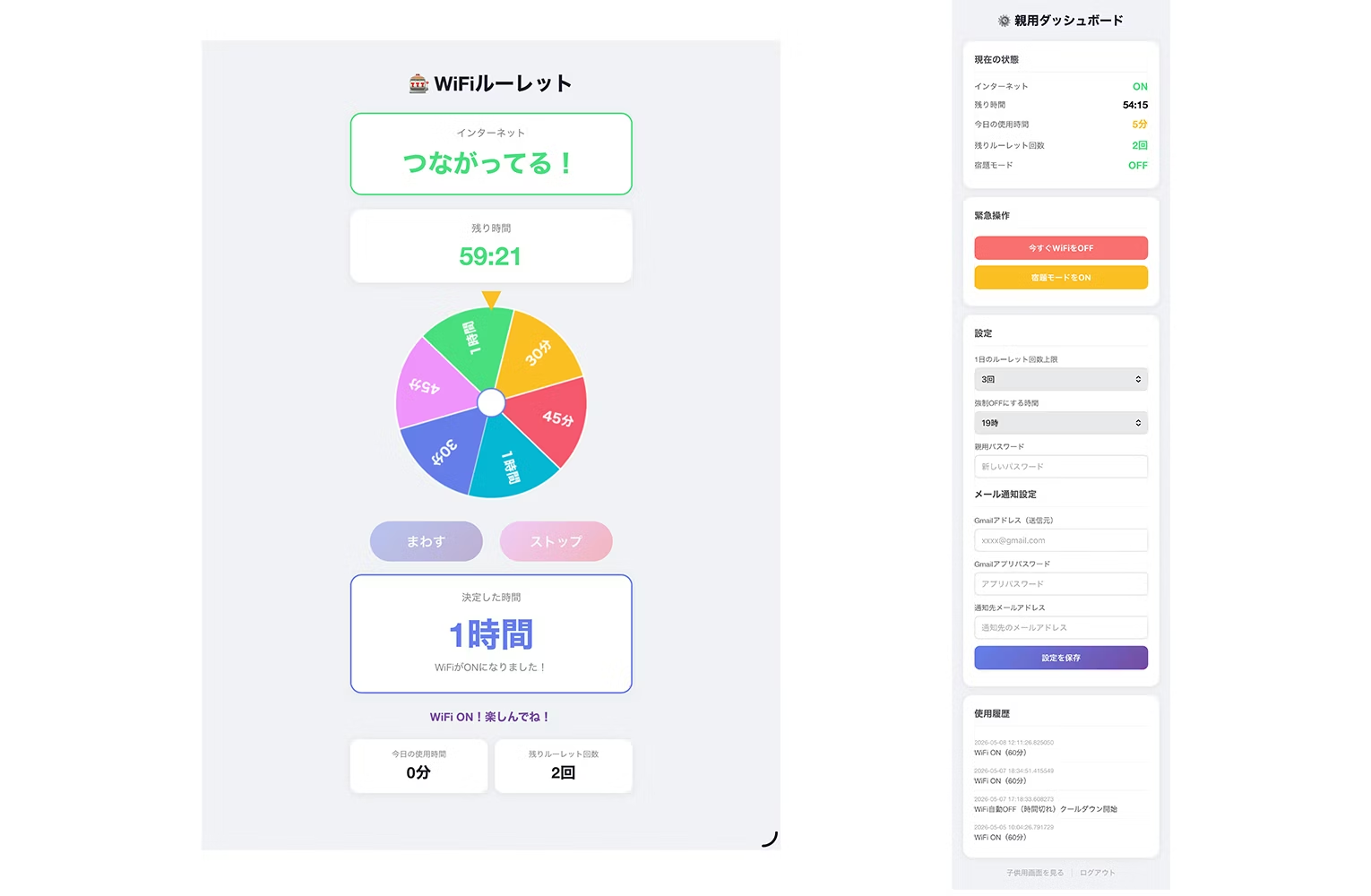
During development, we hit an issue: "Mac doesn't have iptables, so we can't test." We created a dummy function for Mac (one that just outputs print statements) to enable testing.
Every time we got stuck, we worked through it with Claude.
As a designer, I was preparing myself to clean up the layout manually while waiting for the output, but I was pleasantly surprised—it came out beautifully formatted. We barely needed any tweaks.
It's a bit frustrating and a bit satisfying at the same time.
Step 4 — Deploy to Raspberry Pi and enable autostart
File transfer via SCP → Register as systemd service
Transfer the finished file from Mac to Raspberry Pi. A single scp command does it.
terminal (Mac) — Transfer to Raspberry Pi
scp -r templates app.py pi@raspberrypi.local:~/wifi-manager/Manually starting Flask on every reboot is tedious, so we created a systemd service file to autostart. The goal: power on and everything runs automatically.
/etc/systemd/system/wifi-manager.service
[Unit]
Description=WiFi Manager
After=network.target wifi-setup.service

[Service]
ExecStartPre=/bin/bash -c 'echo > /home/pi/wifi-manager/state.json'
ExecStartPre=iptables -F FORWARD
ExecStart=/usr/bin/python3 /home/pi/wifi-manager/app.py
WorkingDirectory=/home/pi/wifi-manager
Restart=always
User=root

[Install]
WantedBy=multi-user.target
# サービスを有効化して起動
sudo systemctl enable wifi-manager
sudo systemctl start wifi-managerNow everything runs automatically when powered on. Open a browser on your phone and go to http://192.168.4.1:5000 to see the roulette screen. It actually works!
What I learned from trying it
As someone who isn't an engineer, I was able to complete everything from network configuration to Python—and I'm certain it was because I could move forward through
dialogue with Claude. When I got stuck, I'd throw the error at it as-is. When I asked "what should I do next?", it would lay out the steps. When I asked "why does this happen?", it would break it down and explain it to me.
You hear a lot about "engineers doing rapid development with AI", but AI becomes your strongest partner in solving those small, everyday frustrations we all face—the ones that matter even if they're minor.
"Ideas that pop into your head can take shape, leapfrogging organizational size and individual skill level"—
getting to experience firsthand this democratization of creation was hands down the biggest takeaway.
As for my child's iPad problem... honestly, it's still not solved.

The system works perfectly. The rest is up to how I manage it as a parent—I'll do my best!



Based in Fukushima, I'm in daily battles with my hyperactive son. Leveraging my fine arts background, I work as a designer and operations manager. The adaptability and quick reflexes honed through parenting are my greatest assets.
Oga
Designer / Operations Manager