
The Japanese WordPress plugin MW WP Form, which has been widely used for a long time, will be discontinued. It's somewhat disappointing given how trusted and adopted it has been by many organizations and corporate websites.
Not all clients can afford the cost of developing a secure email form separately or using a SaaS for frontend implementation. In such cases, we received a request to switch the contact form to Google Forms. We decided to embed Google Forms while preserving the current design, and implemented it!
While there are many resources covering the know-how, and we consulted them as we went, the implementation itself was quite straightforward. There were a few points where we had to troubleshoot, so I'd like to share those key takeaways!
Implementation Steps
- Customize Google Forms as a Static Page
- Redirect to a Completion Page After Form Submission Using JavaScript
- Send Automatic Reply Emails to Inquiries via Google Apps Script
Challenges We Faced
- "namedValues" is undefined when retrieving form responses in GAS for sending auto-reply emails
- The auto-reply email is being sent from my address instead of the form sender's address
Google Forms Customization
Google Forms doesn't have to be deployed as-is—you can embed it into forms created with HTML/CSS and customize the design!
This is our visitor management table, and we've also embedded Google Forms in the form section.
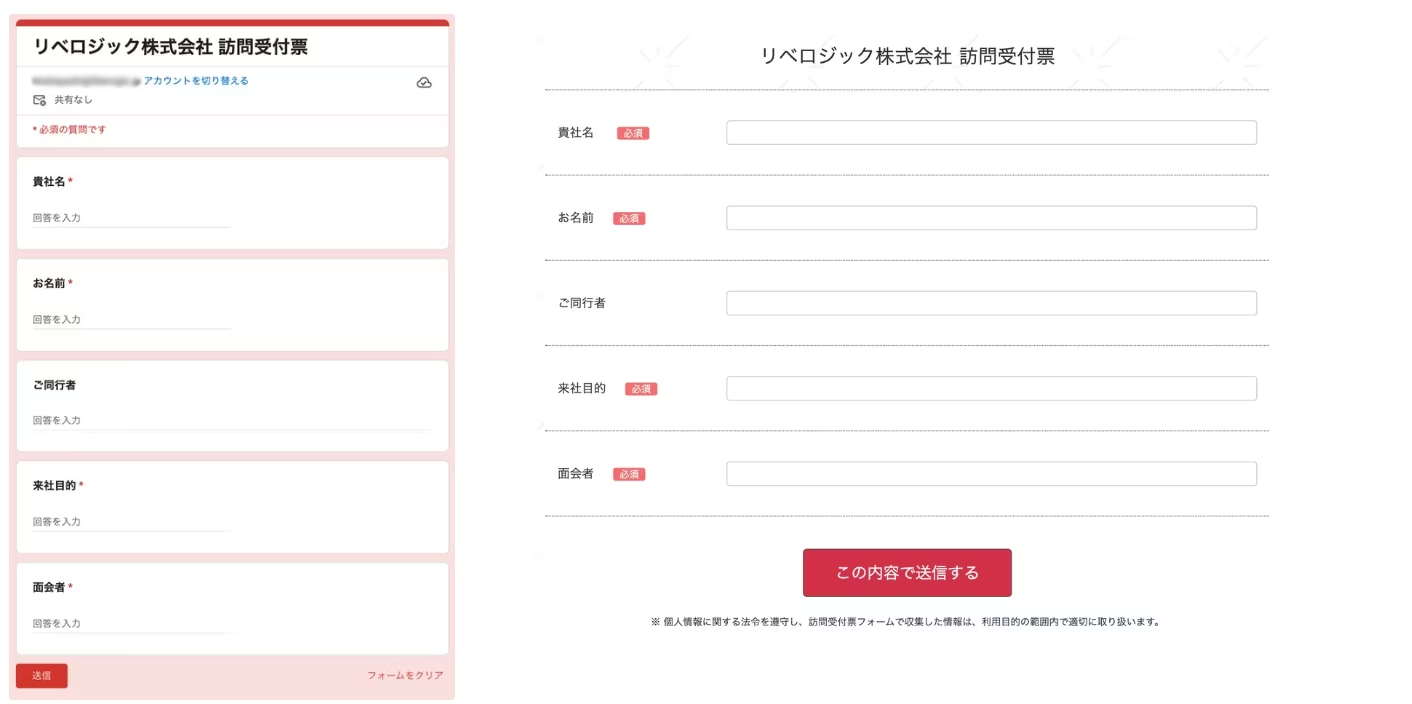
We'll skip the explanation of HTML embedding customization and how to redirect to a completion page after submission this time.
Issue #1
"namedValues" is undefined when retrieving form responses in GAS for sending auto-reply emails
You can implement Google App Script (GAS) from the spreadsheet linked to Google Forms responses and send auto-reply emails.

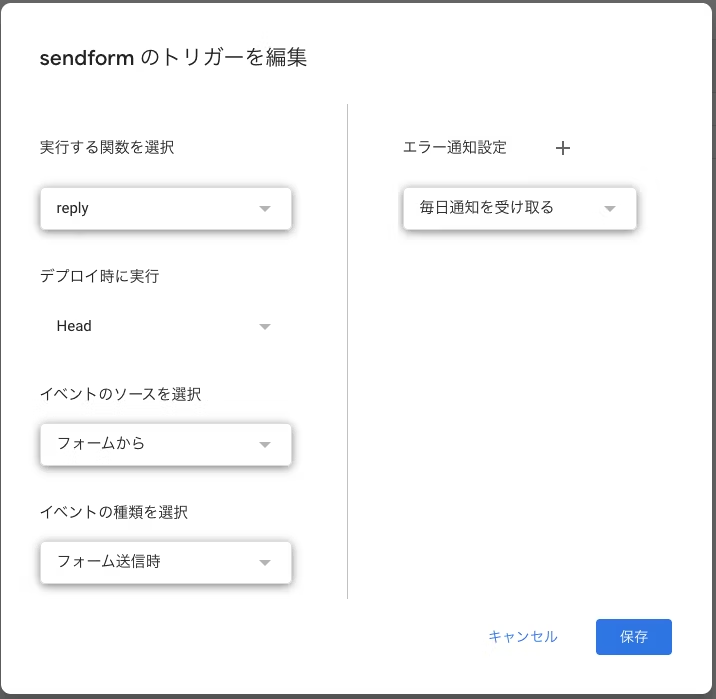
When the submit button on the contact form is pressed, a script runs that reads the information from the linked spreadsheet and reflects it in the email.
function reply(e) {
  // フォームの回答を取得
  const name = e.namedValues['お名前'][0];
  const email = e.namedValues['メールアドレス'][0];


  // 自動返信メール件名
  const subject = '【テスト】お問い合わせありがとうございます';

  // 自動返信メール本文
  const body = name + '様\n' +
    '\n' +
    '下記の内容で申し込みを受付いたしました。\n' +
    '\n' +
    '【お名前】\n' +
    name + '\n' +
    '\n' +
    '【メールアドレス】\n' +
    email + '\n' ;

  // メール送信
  MailApp.sendEmail({
    to: email,
    subject: subject,
    body: body
  });
}
I expected the script to send the email successfully, but it resulted in an error.
TypeError: Cannot read properties of undefined (reading 'name') at reply(reply:3:29)
The first field 'name' could not be found.
Is the event object being retrieved correctly? Let me check below.
function reply(e) {
  Logger.log(JSON.stringify(e));
}
It returned null. Why?
When I looked into the GAS event object namedValues...
Note: Use this form submission trigger with SpreadsheetTriggerBuilder.
It appears this trigger only works with spreadsheets! So this time I'll use response instead.
function reply(e) {
  // フォームの回答を取得
  const responses = e.response.getItemResponses();
  let name = '';
  let email = '';

  // 回答をループして必要な項目を抽出
  responses.forEach(response => {
    const itemTitle = response.getItem().getTitle(); // 質問のタイトルを取得
    const answer = response.getResponse(); // 回答を取得

    if (itemTitle === 'お名前') {
      name = answer;
    } else if (itemTitle === 'メールアドレス') {
      email = answer;
    }
  });

  // 自動返信メール件名
  const subject = '【テスト】お問い合わせありがとうございます';

  // 自動返信メール本文
  const body = name + '様\\n' +
    '\\n' +
    '下記の内容で申し込みを受付いたしました。\\n' +
    '\\n' +
    '【お名前】\\n' +
    name + '\\n' +
    '\\n' +
    '【メールアドレス】\\n' +
    email + '\\n';

  // メール送信
  MailApp.sendEmail({
    to: email,
    subject: subject,
    body: body
  });
}
The argument e of this event has different properties and methods depending on whether the trigger is set up on Google Forms or Sheets, so you need to be careful.
- GoogleForms
e.response.getItemResponses() - Sheets
e.values e.namedValues
The rewritten script worked, and the email arrived successfully!
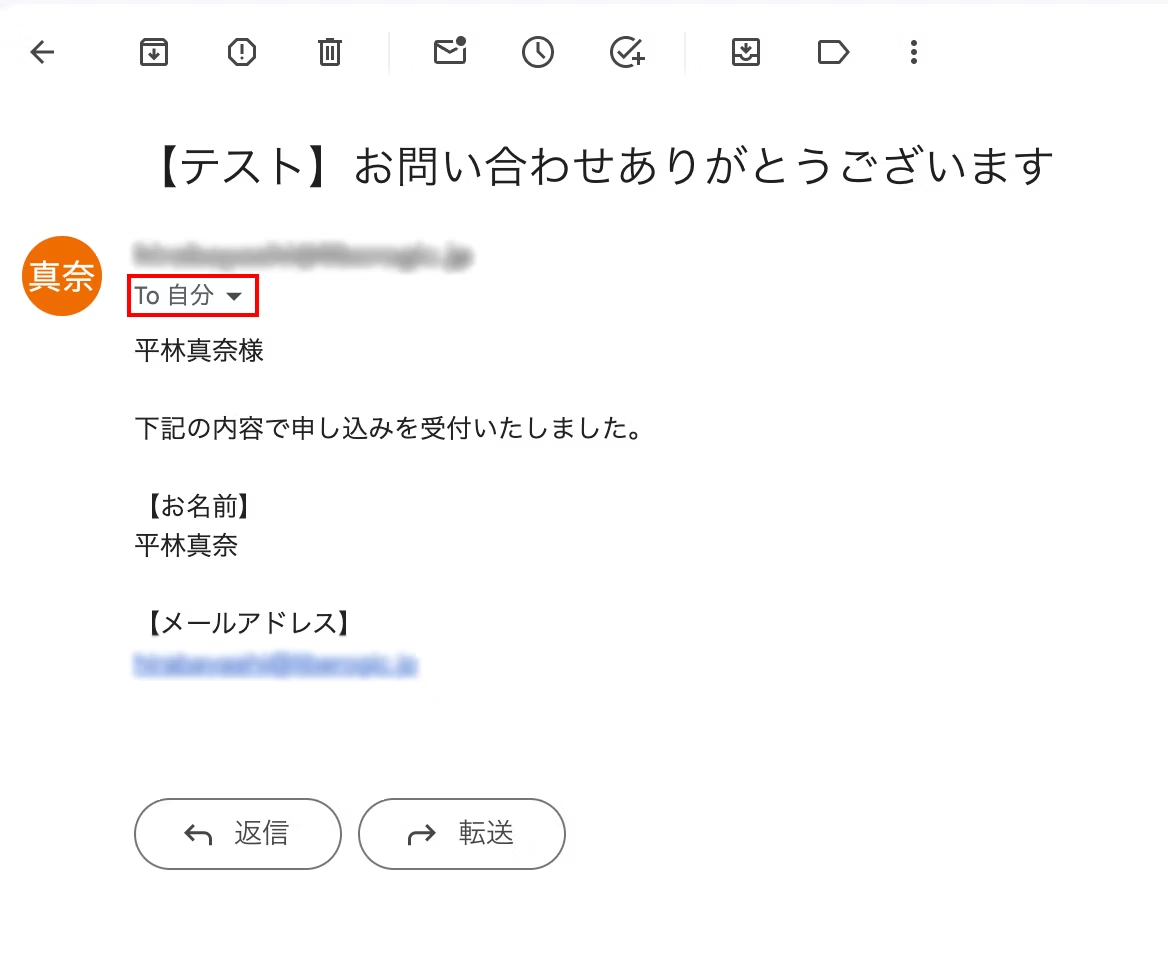
…but when I look more closely, the sender is showing my own address. As it stands, automated emails are being sent to clients from my address.
Issue #2
: Automated email sender address is set to my personal address
- GAS always requires you to specify "whose Google account will execute this."
- When sending email from GAS, it is sent from "the executor's Gmail."
For this project, I was invited to the Google Form with editor permissions and implemented it.
Currently, since the script executor for the automated email is me, the sender address is my own address.
To set this as the client's sender address, I need to reconfigure it with the owner account. Also, if the client requests "please send from the dedicated inquiry address info@example.com," how would I configure that...?

Solutions
- Set up an alias in the client's Gmail account for the inquiry address
info@example.com. - Reconfigure the trigger settings with the owner account.
- Add a custom domain email address to the account, and add the from option to the script's
MailApp.sendEmail()method with the address.
GmailApp.sendEmail(email, replySubject, body, {
    from: 'info@example.com'  // 追加した送信元アドレス
  });
Adding a custom domain address—what is it?
By adding an account, you can send emails using the address info@example.com.
In other words, when sending from within Gmail, you'll be able to select "info@example.com" as the sender name. It's like a sub-address.
If you don't add an account, as long as you're using a Gmail account, you won't be able to freely customize the sender.
In that case, you'll need to use an external SMTP server (for example: SendGrid, Amazon SES).
So the simplest and best approach is to have the owner account
add the info@example.com address for inquiries → then set up the trigger from the owner account.
Note that auto-reply emails will be sent as Gmail, so they'll accumulate in the "Sent" folder.
*If you'd prefer not to have your sent folder fill up, you could also consider creating a dedicated new account.
Summary
Google Forms itself has a basic auto-reply feature, but it doesn't allow customization of the subject line or body.
With other add-ons, the free version is limited to 20 auto-replies per day.
By contrast, GAS lets you build a flexible, scalable solution while keeping costs down!
Benefits of using GAS
- Easy email customization
- You can automatically change the content and recipient of sent emails based on the form responses.
- You can also send emails designed in HTML format, so they look polished.
- Integrates with Google services
- Response data is automatically saved to Google Sheets, making aggregation and management easy.
- Automatically create events in Google Calendar and set reminders.
- Organize and save files to Google Drive for effortless data management.
- No cost involved
- Available for free within Google Workspace.
- No need for external services, so you can operate at low cost.
- Automatic and fast
- Send emails and save data immediately after form submissions.
- You can also execute multiple processes at once in bulk.
- Secure data management
- Since processing is completed within your Google account, there is minimal risk of data leaks to external parties.
- Strong security measures ensure peace of mind.
- Flexible configuration and customization
- Settings can be easily reused even with new forms.
- With just minor code adjustments, you can add new features or implement customizations.
By using Google Apps Script, you can achieve flexibility, extensibility, and cost efficiency while operating safely within Google's ecosystem. It becomes a powerful choice, especially when fine-grained processing and customization based on form responses are required.
We didn't implement a confirmation screen this time as it was outside our scope, but if the request comes up next time, it's something I'd like to explore. I'll write another post about it then!
If you need assistance with contact form updates or migration, please feel free to contact us!
Reference: Zenn article by ryotoitoiさん: https://zenn.dev/ryotoitoi/articles/3cedb115d816e5



I focus on frontend development with markup, JavaScript, React, and Next.js. I'm always happy when a site I've worked on goes live successfully! My hobbies are playing guitar, and I love cats and roasted sweet potatoes 🐱🍠
Hiraicchi
Frontend Engineer / Joined 2022