

Customers often ask us to display the rankings of their articles.
When displaying article rankings from micorCMS on a Jamstack site, it is common to create a dedicated API.
However, if you want to implement it but there is no more API available,Write pageviews directly into existing article contentThere is also this approach.
This time, we will introduce an example of this approach on a site published on SSG using microCMS + Cloudflare Pages!
However, Cloudflare has become known to the general public in a strange way, but this is actually something that we have been testing on our website for a while now, in response to requests from our customers!https://www.liberogic.jp/topics/
When is this approach suitable?
- If you want to display a top 10 ranking in the sidebar or footer
- When real-time performance is not required
- There is no room for the microCMS API quota
- If you want a simple implementation using static site generation (SSG)
Step 1: Prepare the microCMS (schema extension and webhook control)
1-1. Extending the API schema
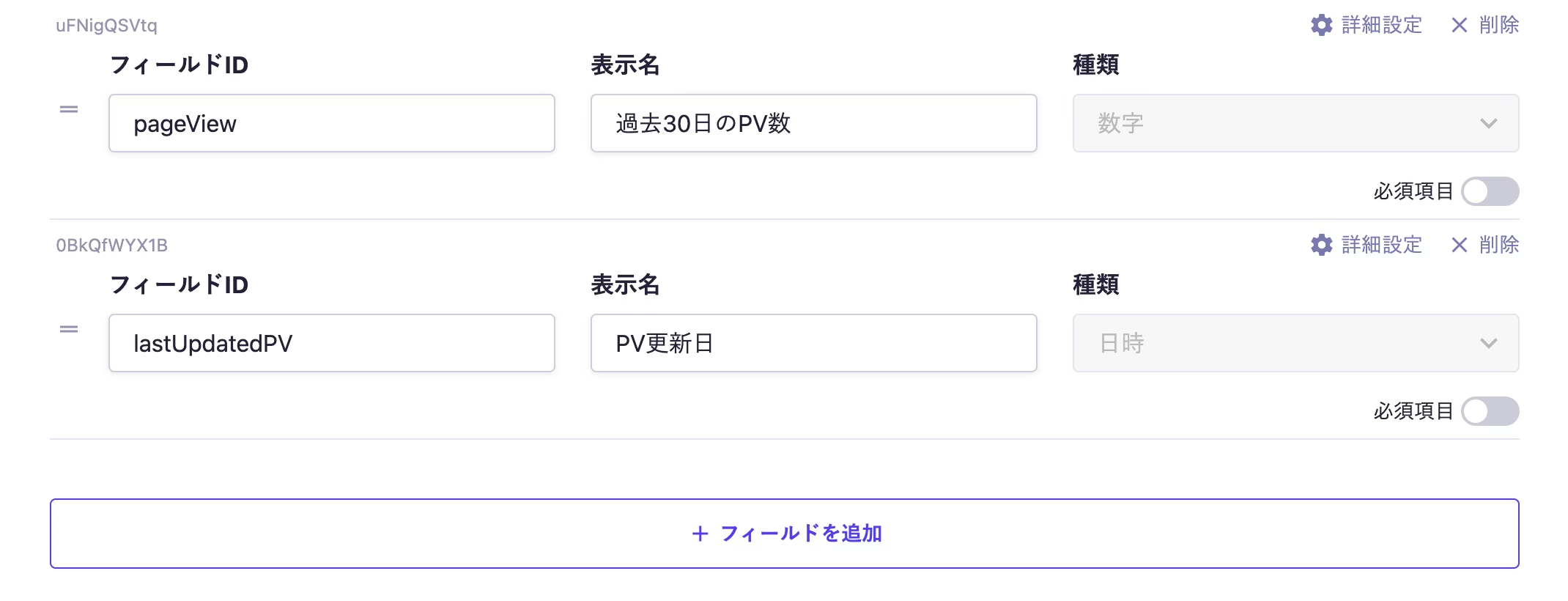
Add two ranking fields to the existing article endpoint.
pageView(Number): Stores the cumulative page views for the past 30 days obtained from GA4.lastUpdatedPV(Date and Time): Records the date and time when the PV was last updated.
1-2. Setting API key permissions
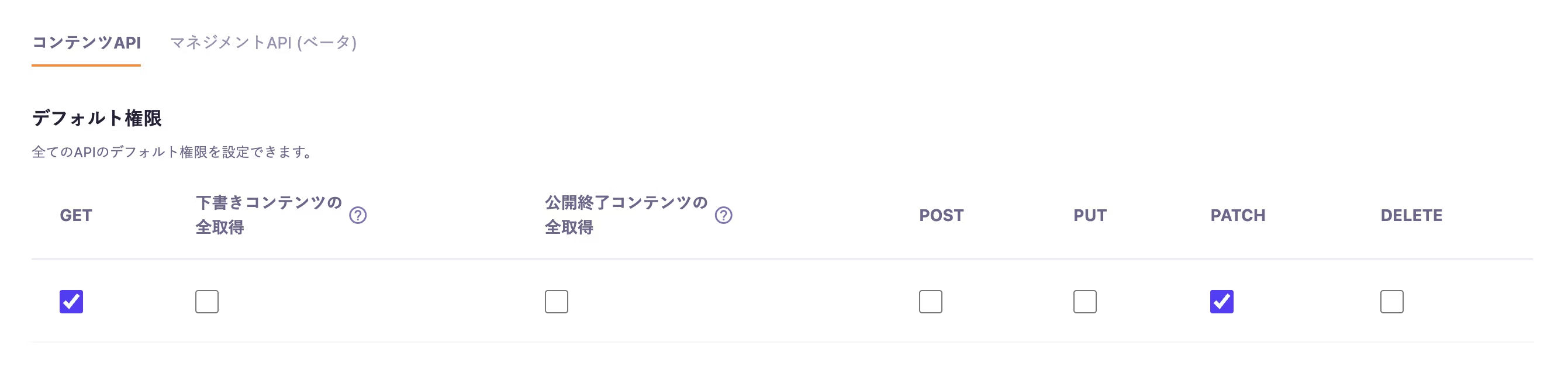
In the settings for the API key you want to usePATCHCheck the box.
1-3. Webhook settings (a workaround for continuous builds)
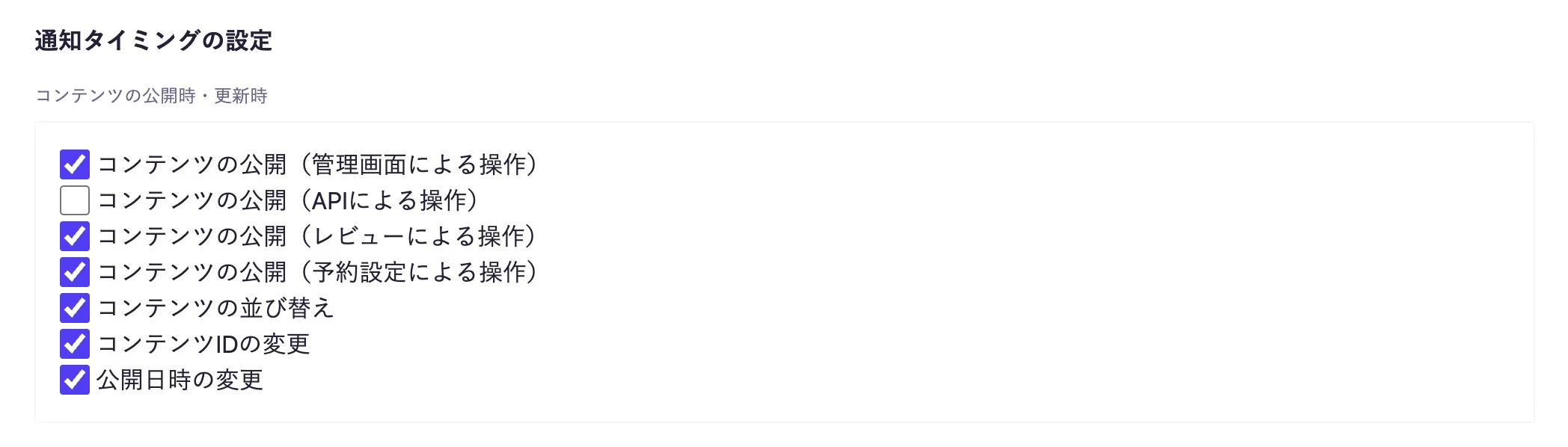
To prevent multiple builds from occurring when updating the pageview count for each article, add the following to the Webhook trigger:Publishing content (API operations)" Uncheck ".
Step 2: Configure authentication in the Google Cloud Console
To access from Cloudflare Workers,Service AccountandData APIPrepare the following.
2-1. Enabling API
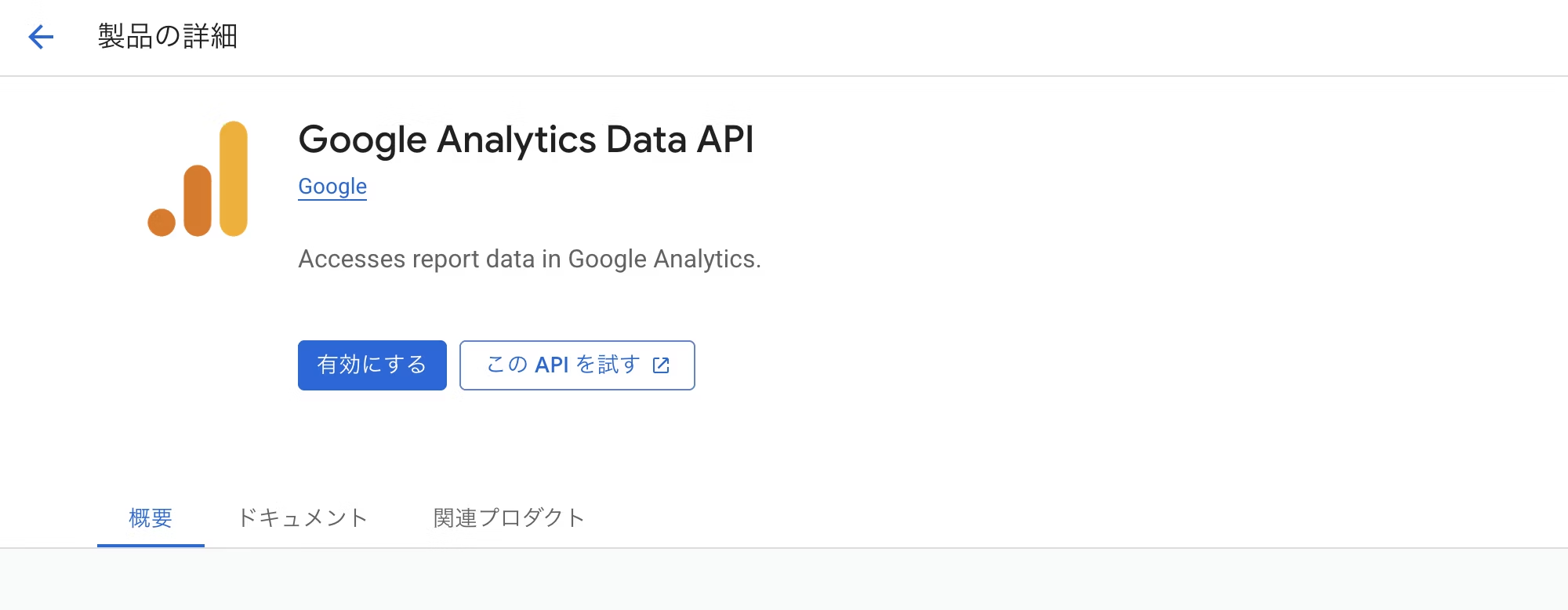
In your Google Cloud Console project,Google Analytics Data APIEnable
2-2. Creating a service account and key
Create a service account for GA4 integration and copy the email address.
In the Keys tab, click "Add Key" and then "Create a new key," then create and download a key with the key type JSON.
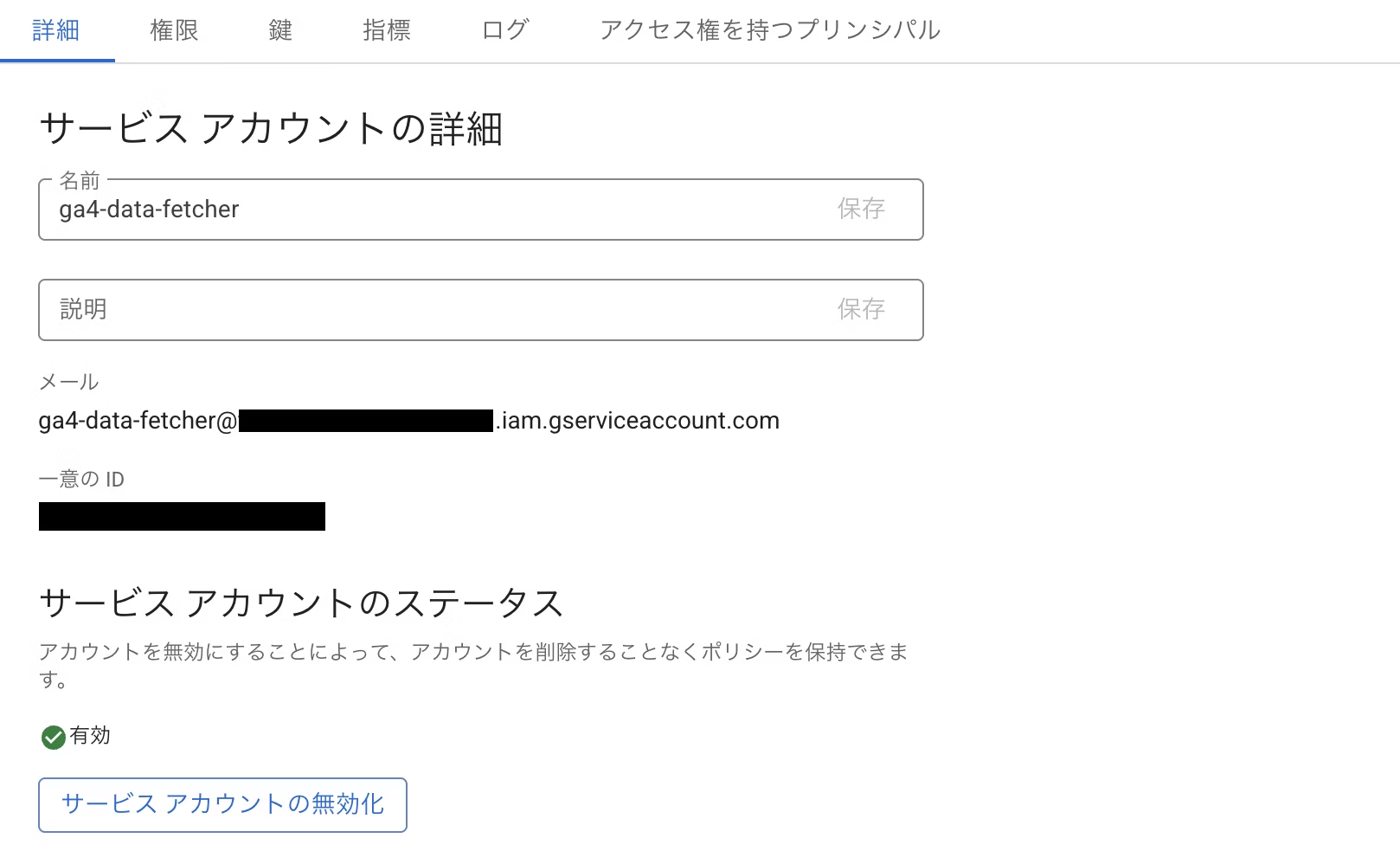
2-3. GA4 Permission Granting
In the "Access Management" section of your GA4 property, add the email address noted in 2-2 as a user and grant them "Viewer" or higher privileges.
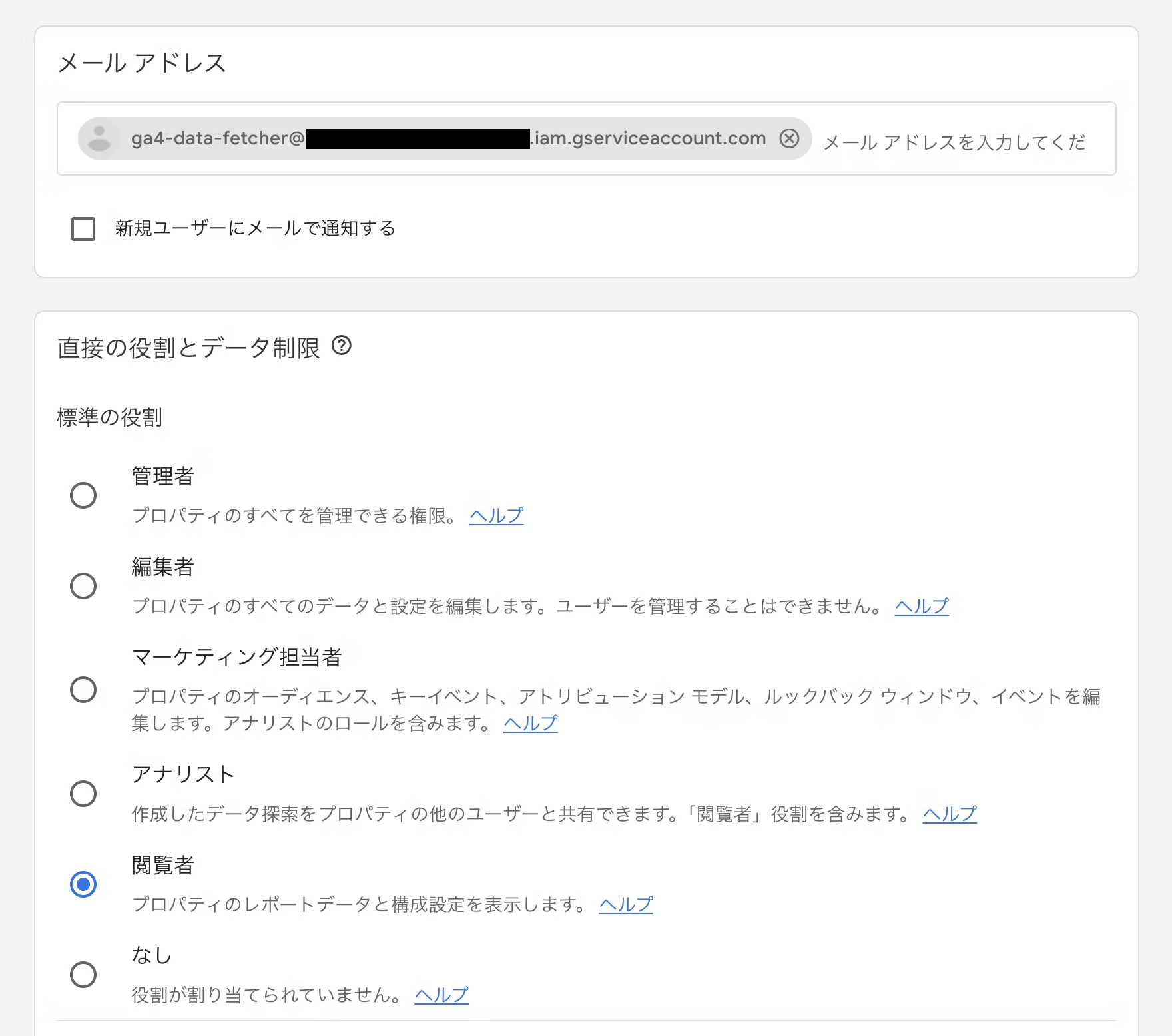
Step 3: Create and configure Cloudflare Workers (GA4 data acquisition)
3-1. Creating Workers and Setting Environment Variables
Workersga4-ranking-updaterCreate a new one with a name like
Set the environment variables from the settings. Register the key as a secret.
|
MICROCMS_API_KEY |
microCMS API key |
|---|---|
|
MICROCMS_API_URL |
https://[ID].microcms.io/api/v1 |
|
GA4_PROPERTY_ID |
GA4 property ID |
|
GA4_SERVICE_ACCOUNT_CREDENTIALS |
The entire contents of the JSON key file |
|
GA4_PRIVATE_KEY_BASE64 |
From the JSON private_key value |
3-2. GA4 Data Update Worker
Click "Edit code" and change the content of worker.js to the following:
const MICROCMS_ENDPOINT_NAME = '[記事のエンドポイント名]';

let contentIdToSlugMap = {};

// ----------------------------------------------------------------------
// 1. microCMSから全記事のIDとスラッグを取得し、マップを作成する
// ----------------------------------------------------------------------
async function fetchContentMap(env) {
    const apiEndpoint = `${env.MICROCMS_API_URL}/${MICROCMS_ENDPOINT_NAME}`;
    const slugToIdMap = {};
    let offset = 0;
    const limit = 100;

    while (true) {
        const url = `${apiEndpoint}?fields=id,slug&limit=${limit}&offset=${offset}`;
        const response = await fetch(url, {
            headers: { 'X-MICROCMS-API-KEY': env.MICROCMS_API_KEY },
        });
        if (!response.ok) {
            throw new Error(`microCMS Map Fetch Error: ${response.status} ${await response.text()}`);
        }
        const data = await response.json();

        data.contents.forEach(item => {
            if (item.slug && item.id) {
                slugToIdMap[item.slug] = item.id;
            }
        });
        if (data.contents.length < limit || data.totalCount <= (offset + limit)) {
            break;
        }
        offset += limit;
    }

    contentIdToSlugMap = slugToIdMap;
    console.log(`microCMSから合計 ${Object.keys(slugToIdMap).length} 件の記事IDマップを取得しました。`);
}

// ----------------------------------------------------------------------
// 2. JWT 認証ヘルパー関数群 (GA4 アクセストークン取得用)
// ----------------------------------------------------------------------
// Base64Url エンコード/デコード
const base64UrlEncode = (data) => btoa(String.fromCharCode(...new Uint8Array(data))).replace(/\\+/g, '-').replace(/\\//g, '_').replace(/=+$/, '');
const base64UrlDecode = (data) => Uint8Array.from(atob(data.replace(/-/g, '+').replace(/_/g, '/')), c => c.charCodeAt(0));

async function importPrivateKey(keyBase64) {
    // 秘密鍵本体をデコードし、DER形式のバイナリにする
    const binaryDer = base64UrlDecode(keyBase64);

    return crypto.subtle.importKey(
        'pkcs8',
        binaryDer,
        { name: 'RSASSA-PKCS1-v1_5', hash: 'SHA-256' },
        false,
        ['sign']
    );
}

// GA4 Service Accountの認証情報からAccess Tokenを取得するメイン関数
async function getAccessToken(credentialsString, privateKeyBodyBase64) {
    // 認証情報JSONをパースし、client_emailを取得
    const creds = JSON.parse(credentialsString);
    const serviceAccountEmail = creds.client_email;

    const now = Math.floor(Date.now() / 1000);
    const expiry = now + 3600; // 有効期限: 1時間後
    const header = { alg: 'RS256', typ: 'JWT' };
    const payload = {
        iss: serviceAccountEmail,
        scope: '<https://www.googleapis.com/auth/analytics.readonly>',
        aud: '<https://oauth2.googleapis.com/token>',
        exp: expiry,
        iat: now,
    }

    // 2. 署名するデータ(Header.Payload)を作成
    const encodedHeader = base64UrlEncode(new TextEncoder().encode(JSON.stringify(header)));
    const encodedPayload = base64UrlEncode(new TextEncoder().encode(JSON.stringify(payload)));
    const signatureInput = `${encodedHeader}.${encodedPayload}`;

    // 3. 秘密鍵をインポートし、JWTに署名
    const key = await importPrivateKey(privateKeyBodyBase64);
    const signature = await crypto.subtle.sign(
        { name: 'RSASSA-PKCS1-v1_5' },
        key,
        new TextEncoder().encode(signatureInput)
    );
    const encodedSignature = base64UrlEncode(new Uint8Array(signature));

    // 4. JWTを完成させる
    const jwt = `${signatureInput}.${encodedSignature}`;

    // 5. Googleトークンエンドポイントへリクエスト
    const tokenResponse = await fetch('<https://oauth2.googleapis.com/token>', {
        method: 'POST',
        headers: {
            'Content-Type': 'application/x-www-form-urlencoded',
        },
        body: new URLSearchParams({
            grant_type: 'urn:ietf:params:oauth:grant-type:jwt-bearer',
            assertion: jwt,
        }),
    });

    if (!tokenResponse.ok) {
        throw new Error(`Token request failed: ${tokenResponse.status} ${await tokenResponse.text()}`);
    }

    const tokenData = await tokenResponse.json();
    return tokenData.access_token; // アクセストークンを返す
}

// ----------------------------------------------------------------------
// 3. GA4 データ取得関数
// ----------------------------------------------------------------------
async function fetchGa4Data(accessToken, propertyId) {
    const apiEndpoint = `https://analyticsdata.googleapis.com/v1beta/properties/${propertyId}:runReport`;

    const response = await fetch(apiEndpoint, {
        method: 'POST',
        headers: {
            'Authorization': `Bearer ${accessToken}`,
            'Content-Type': 'application/json',
        },
        body: JSON.stringify({
            dateRanges: [{ startDate: '30daysAgo', endDate: 'yesterday' }], // 昨日から30日間で取得する(必要に合わせて変更)
            dimensions: [{ name: 'pagePath' }],
            metrics: [{ name: 'screenPageViews' }],
            orderBys: [{ metric: { metricName: 'screenPageViews' }, desc: true }],
            limit: 100, // 100件以降の記事はPV0として処理する(必要に合わせて変更)
        }),
    });

    if (!response.ok) {
        throw new Error(`GA4 API Error: ${response.status} ${await response.text()}`);
    }

    const data = await response.json();

    const pvData = data.rows?.map(row => ({
        pagePath: row.dimensionValues[0].value,
        pageView: parseInt(row.metricValues[0].value, 10),
    })) || [];

    return pvData;
}

// ----------------------------------------------------------------------
// 4. microCMS コンテンツID解決関数
// ----------------------------------------------------------------------
// `/blog/記事スラッグ/`という構造の場合(必要に合わせて変更)
function resolveContentIdFromPath(pagePath) {
    try {
        const cleanPath = new URL('<https://dummy.com>' + pagePath).pathname;
        const parts = cleanPath.split('/').filter(p => p.length > 0);

        // 1. '/blog/ID' の構造であるか確認
        if (parts.length < 2 || parts[0] !== 'blog') {
            return null;
        }

        const slug = parts[1];

        // マップを使って、スラッグからコンテンツIDを取得
        const actualContentId = contentIdToSlugMap[slug];

        if (!actualContentId) {
             // マップに存在しない(microCMSに記事が存在しない)場合は無視
             console.log(`[IGNORE] Slug ${slug} not found in microCMS map.`);
             return null;
        }

        // microCMSのコンテンツIDを返す
        console.log(`[RESOLVED] Slug ${slug} -> ID: ${actualContentId}`);
        return actualContentId;

    } catch (e) {
        console.error(`Path parsing error for ${pagePath}: ${e}`);
        return null;
    }
}

// ----------------------------------------------------------------------
// 5. microCMS コンテンツ更新関数
// ----------------------------------------------------------------------
async function updateMicroCMS(pvData, env) {
    let updatedCount = 0;
    const errors = [];

    // 1. GA4データをスラッグをキーとするマップに変換
    const ga4SlugPvMap = {};
    pvData.forEach(item => {
        const slug = item.pagePath.split('/').filter(p => p.length > 0)[1];
        if (slug) {
            ga4SlugPvMap[slug] = item.pageView;
        }
    });

    // 2. microCMSの全記事マップ (contentIdToSlugMap) をループ
    for (const slug in contentIdToSlugMap) {
        if (contentIdToSlugMap.hasOwnProperty(slug)) {

            const actualContentId = contentIdToSlugMap[slug];

            // 2で取得したGA4のデータにあればその値、なければ 0 を設定 (リセット)
            const newPageView = ga4SlugPvMap[slug] || 0;

            // PATCHリクエストのURLを構築
            const microcmsUrl = `${env.MICROCMS_API_URL}/${MICROCMS_ENDPOINT_NAME}/${actualContentId}`;

            const updatePayload = {
                pageView: newPageView,
                lastUpdatedPV: new Date().toISOString()
            };

            const response = await fetch(microcmsUrl, {
                method: 'PATCH',
                headers: {
                    'Content-Type': 'application/json',
                    'X-MICROCMS-API-KEY': env.MICROCMS_API_KEY,
                },
                body: JSON.stringify(updatePayload),
            });

            if (response.ok) {
                updatedCount++;
            } else {
                errors.push({ contentId: actualContentId, status: response.status, body: await response.text() });
            }
        }
    }

    if (errors.length > 0) {
        console.error(`microCMS Update Errors: ${JSON.stringify(errors)}`);
    }

    console.log(`microCMSのコンテンツ ${updatedCount} 件を更新しました。`);
    return updatedCount;
}

// ----------------------------------------------------------------------
// 6. Workerのメインハンドラー (Cron Triggers用)
// ----------------------------------------------------------------------
export default {
    async scheduled(controller, env, ctx) {
        try {
            console.log('--- GA4 Ranking Updater Started ---');

            // 1. microCMSからIDマップを事前取得
            await fetchContentMap(env);

            // 2. GA4 Access Tokenの取得
            const accessToken = await getAccessToken(
                env.GA4_SERVICE_ACCOUNT_CREDENTIALS,
                env.GA4_PRIVATE_KEY_BASE64
            );

            // 3. GA4データ取得
            const pvData = await fetchGa4Data(accessToken, env.GA4_PROPERTY_ID);
            console.log(`GA4から ${pvData.length} 件のデータを取得しました。`);

            // 4. microCMSコンテンツの更新
            const updatedCount = await updateMicroCMS(pvData, env);

            console.log(`microCMSのコンテンツ ${updatedCount} 件を更新しました。`);
            console.log('--- GA4 Ranking Updater Finished ---');

        } catch (error) {
            console.error('致命的なエラーが発生しました:', error);
        }
    }
};
Main logic of the Worker code:
- Get a map in advance: All microCMS articles
idandslugPre-fetch the map. - GA4 data acquisition: Gets the cumulative page views for the past 30 days.
- Update Logic: If there is data in GA4, update it with the new PV, if not, update the PV
0Reset to.
3-3. Cron settings (data update)
Cron triggers in the trigger events of the settings0 15 * * *It runs every day at midnight and reflects the data from the previous day in microCMS.
Step 4: Create and configure Cloudflare Workers (build triggers)
4-1. Creating Workers and Setting Environment Variables
To separate data updates and deployments, we use Workers dedicated to site builds.build-triggerCreate it with a name like:
In environment variablesCLOUDFLARE_PAGES_BUILD_HOOKSet the Cloudflare Pages build hook URL to
4-2. Worker code (build trigger)
In the Pages build hookPOSTImplement the code that sends the request.
export default {
  async scheduled(controller, env, ctx) {
      // 環境変数からビルドフックURLを取得
      const buildHookUrl = env.CLOUDFLARE_PAGES_BUILD_HOOK;

      if (!buildHookUrl) {
          console.error("FATAL: CLOUDFLARE_PAGES_BUILD_HOOK environment variable is not set.");
          return;
      }

      // 2. ビルドフックURLにPOSTリクエストを送信
      const response = await fetch(buildHookUrl, {
          method: 'POST',
          headers: {
              'Content-Type': 'application/json',
          },
      });

      // 3. 結果の確認
      if (response.ok) {
          console.log("✅ Cloudflare Pages Build Triggered Successfully.");
      } else {
          console.error(`❌ Build Trigger Failed! Status: ${response.status} ${response.statusText}`);
      }
  },
};
4-3. Cron settings (site deployment)
Cron triggers in the trigger events of the settings10 15 * * *Since we want to wait for the completion of step 3 before executing the deployment, we will start the deployment 10 minutes later at 12:10 AM every day to allow for some leeway.
summary
Although it is less immediate than preparing a ranking API, I think it is acceptable if it takes about 10 minutes. The cost-effectiveness of not consuming an API and being able to run it on Cloudflare's free tier, as well as the simple configuration that can be completed with Cloudflare, are major advantages!


He jumped from DTP to the web world and quickly became a "master of craftsmanship" with a mastery of markup, front-end design, direction, and accessibility. He's been active in a variety of fields since Liberogic's founding and is now a living dictionary within the company. Recently, he's been obsessed with exploring efficiency improvements using prompts, wondering, "Can we rely more on AI for accessibility?" His technology and thinking are still evolving.
Futa
IAAP Certified Web Accessibility Specialist (WAS) / Markup Engineer / Front-end Engineer / Web Director