

Hi, I'm Hasshi.
This time I tried out the "template feature" that was recently added to Slack, so I'd like to share my impressions and ideas on how to use it. When I think of Slack, I imagined it was mainly for sharing messages and files, so my first reaction was honestly "Templates? What's that?"
But after trying it out, I felt there was more potential than I expected, so if you're interested, please take a look.
What are Slack templates?
A new Slack feature that appeared out of the blue recently.
First, let's take a moment to break down what "Slack templates" actually are.
The official website describes it as "initial setup to bring Canvas, lists, and workflows together in one channel for efficient work." While this explanation is still a bit unclear, in simple terms, it's a mechanism that lets you easily create the foundation for project and task management. It's like being able to set up everything at once—to-do lists, shared information notes, workflow for progress tracking—when you're starting a new project.
For people who used to customize channels from scratch, this feature is definitely a time-saver.
My honest impressions using Slack templates
When I first tried it, I was skeptical, thinking "This might not be practical for work?" But once I actually started using it, I was able to use the templates intuitively.
The official templates come in various types—for example, "Project Starter Kit" and "Feedback Tracker"—with options designed for team collaboration.
Choose a template, make a few minor customizations, and you're ready to go—perfect if you just want to try it out.
I was surprised that Slack, which is primarily a communication tool, has extended into management features like this.
To be honest, there's significant overlap with Backlog, Notion, and Asana, but because everything stays within Slack, I found it quite convenient for Slack users.
My personal recommendations
Here are the features I found particularly useful when testing it.
Recommended features of Slack templates
- Canvas
You can organize and share project plans, meeting notes, and Wiki-like information within Slack. Real-time editing is possible, which is great for keeping everyone informed with the latest information. - Lists
Easily manage task progress. You can set due dates and assign owners, so I'm using it as a project To-Do list. The ability to complete everything within Slack is a major plus. - Workflow
A feature that automates routine tasks. For teams with repetitive work, leveraging this could significantly improve efficiency.
You can also create custom Slack templates
While the official team provides templates, you can also register customized versions of your own.
By registering templates tailored to each team, you can simply select a Slack template when launching a new project and complete the initial setup immediately—once you get used to it, you can streamline your workflow.
Benefits of Slack templates
- Solves the problem of messages being buried in comments, making it difficult to find the relevant thread.
- Manage projects by task and see overall progress at a glance.
- For projects that don't require advanced management tools like Backlog, list-based management is sufficient.
- Easily change assignees, making management much simpler.
Slack template drawbacks
- Notifications are not delivered unless you are viewing the list (simply being in the channel does not trigger notifications).
- Easy to miss notifications.
- Since comments are managed within a thread, the channel in the sidebar does not become active even when new comments arrive.
- While new comments update within the thread, the channel itself does not become active, creating a high risk of oversight.
- As threads increase, projects can easily be buried and visibility may decrease.
Try the vacation request form in action!
We'll show you how to create a vacation request workflow using Slack's "Vacation Request Form" template.
Templates sound convenient, but how do you actually use them? Some of you might be wondering that.
But don't worry! It's actually quite simple. I'll walk you through each step carefully, so let's work through this together!
Step 1: Add the template to your channel
First, let's start by adding the template to your existing Slack channel.
Follow the steps below to set it up!
- Open the channel
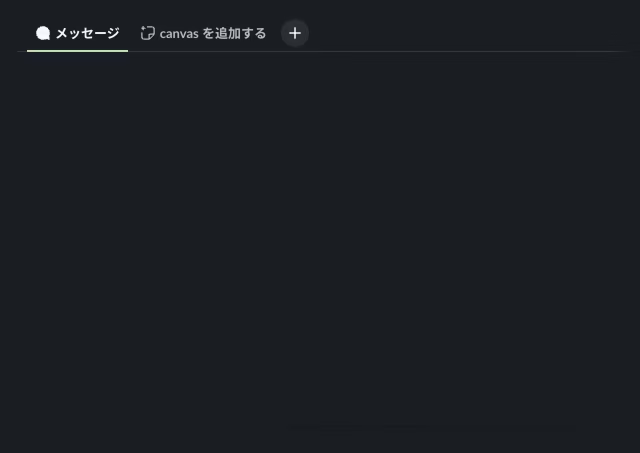
When you open the channel, you'll see tabs at the top. Click the "+" icon on the right side of the tabs.
- Select the template
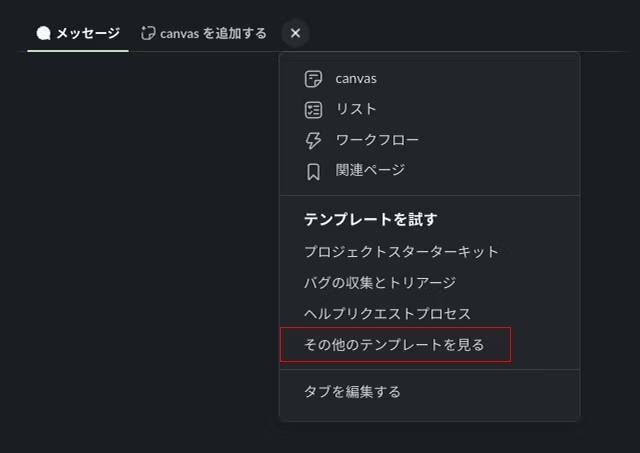
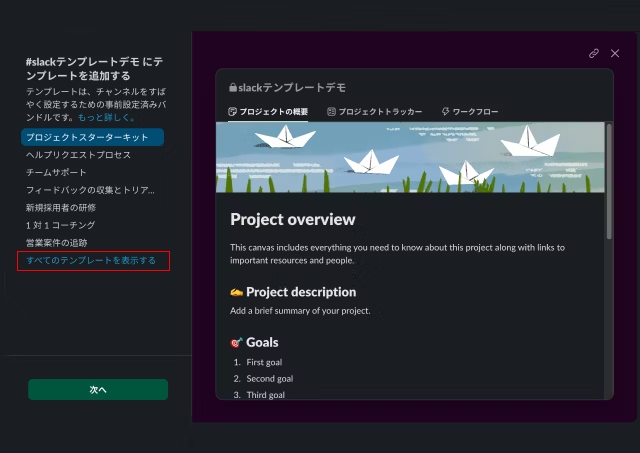
From the menu that appears, select "Try templates," then click "View more templates." A modal (popup window) will display, and when you select "Show all templates," the hidden templates will now appear in the list!
- Select "Vacation Request Process"
Select "Display all templates" from the list.
Select "Vacation request process" from the list.
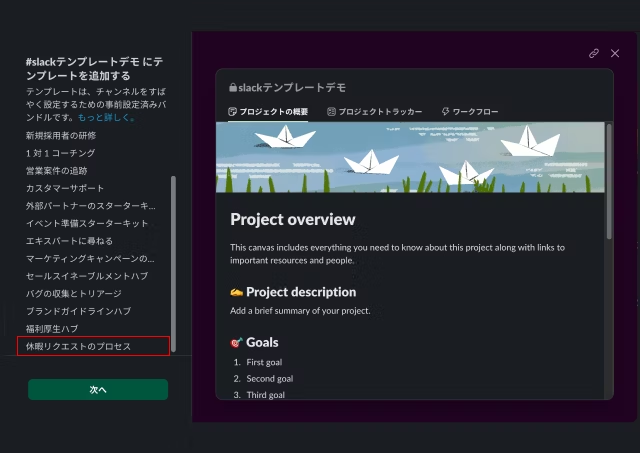
A demo screen appears on the right side, where you can see what the template includes.
This template contains the following 4 items:
- Canvas: Detailed information about "Request process"
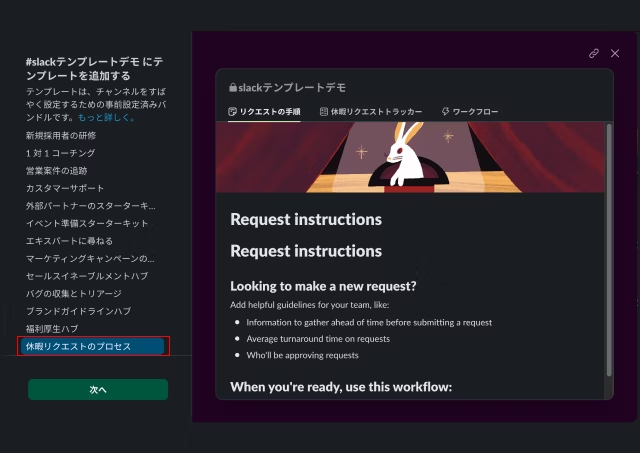
- List: Manage progress in "Vacation request tracker"
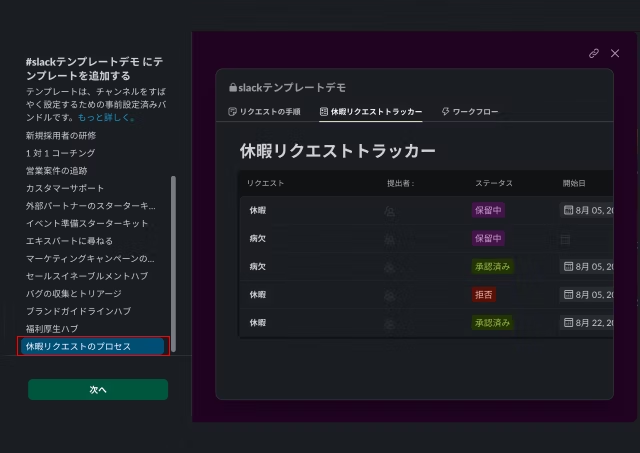
- Workflow:
- "Vacation request form"
- "Item status notification"
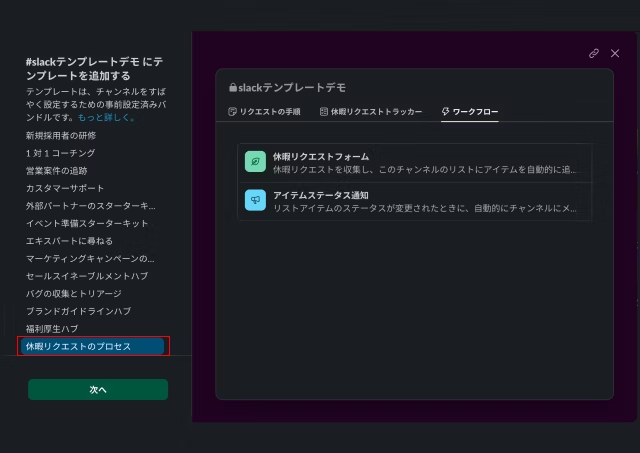
Canvas + List + Workflow bundled together—a very convenient configuration!
- Add template to channel
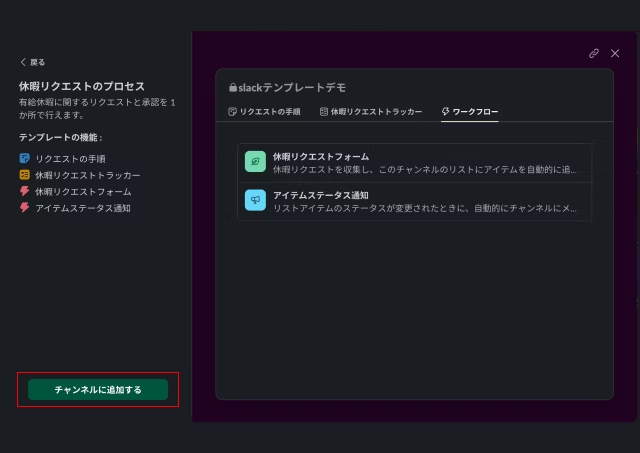
Click "Next" to proceed to the confirmation screen. Finally, click the "Add to channel" button to apply the template to your channel.
This task takes just 30 seconds to 1 minute!
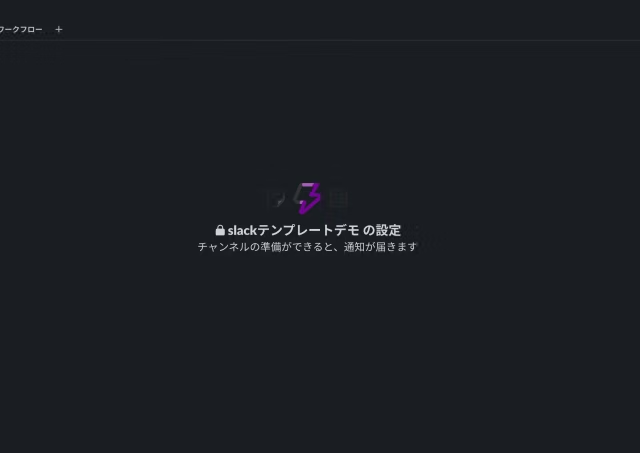
- Confirm the addition complete message
When a template is added to the channel, you'll receive a message from Slack. Click the link and get started!
Step 2: Set up the vacation request form
Next, let's try using the "time-off request form" in practice! There are two ways to do this:
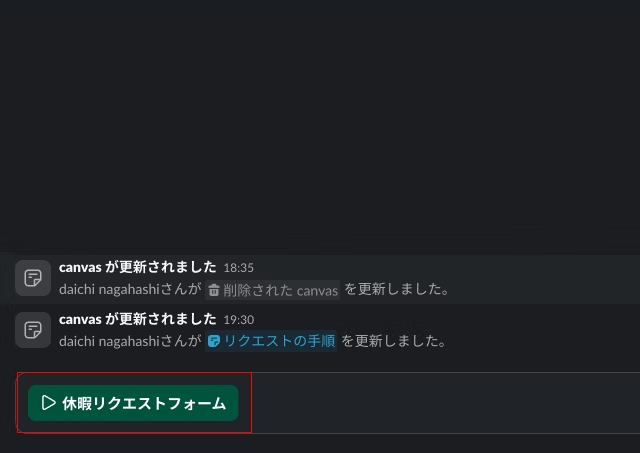
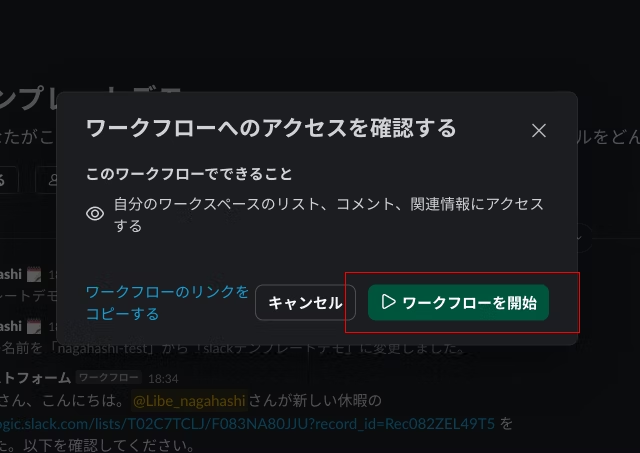
This time, let's try starting a workflow from Canvas!
- Select a workflow on Canvas
Click on the "Time Off Request Form" workflow in Canvas.
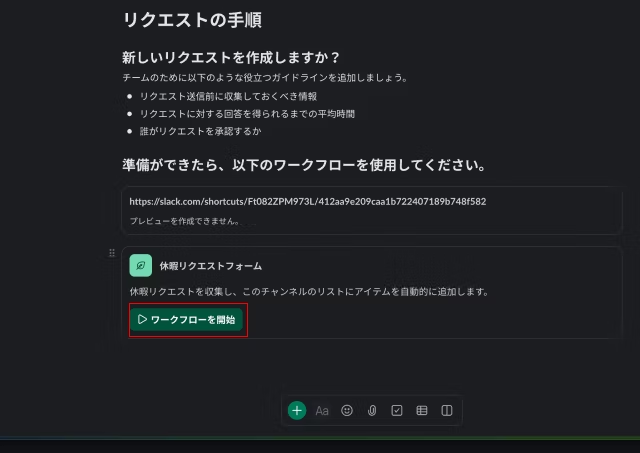
- Select a channel
When you start the workflow, a screen appears to select the submission channel. In this example, we'll select "pj-slack_template_demo".
- Enter application details
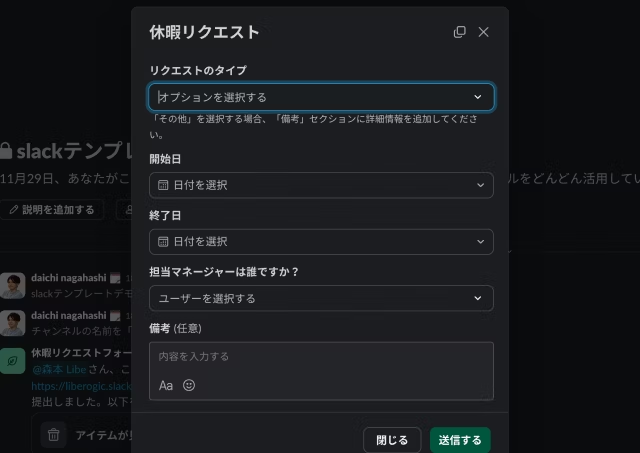
A form will appear. Fill in the required information:
- Request type (e.g., paid time off, sick leave, etc.)
- Start date and end date
- Approver name
- Notes (add additional information as needed)
The dropdown menu displays supplementary explanations, making it easy to understand!
- Submit form
Once you've filled in all required fields, click "Submit." Your time-off request will then move into the approval workflow.
Step 3: Understanding the approval process
When you submit the form, a message like the one below will be posted to the channel:
「担当者」さん、こんにちは。
「申請者」さんが新しい休暇の <https://liberogic.slack.com/lists/*****/> を提出しました。以下を確認してください。
Click the link in this message to approve the request.
Everything happens in Slack, so there's no need to switch between email or other tools!
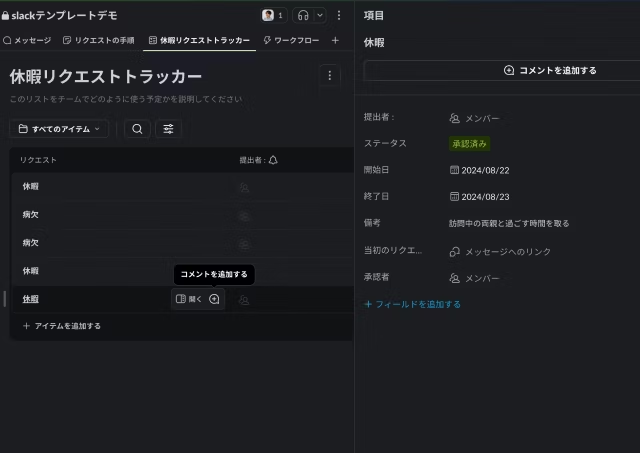
Step 4: Manage progress with a list
Submitted items are automatically saved to a list. When
approvers change the status, everyone can see whether requests are "approved" or "pending."
Now your entire team can see at a glance who's taking time off and when. It makes communication easier and helps you plan coverage during absences!
Summary: streamline your workflow with Slack templates!
The "time off request form" we've introduced today is a powerful template that combines Canvas, lists, and workflows.
It's simple to implement and everything is handled within Slack—that's its main appeal. We encourage you to try it with your team!
While the current list lacks archive functionality and isn't as feature-rich as issue management tools like Backlog or Asana, I think it's best to start with smaller, convenient features like this "Vacation Request Form" and gradually build out and refine the system over time!



UI design is constantly evolving! I'm working through how to integrate accessibility into LP design. I've been stepping away from markup lately and wondering if I should level up my JavaScript skills too. I'm a fan of Takumi Kitamura!
Hashy
Web Designer / Joined 2018 / Still a beginner at heart